Getting started
River gives you a page for each day, and space to develop what you write. Here is how to begin.
1 · Start here
Write on today’s page
Open River and start typing on Today. A thought, something you noticed, a few lines you want to keep — you don’t need to name a note or choose a folder first.
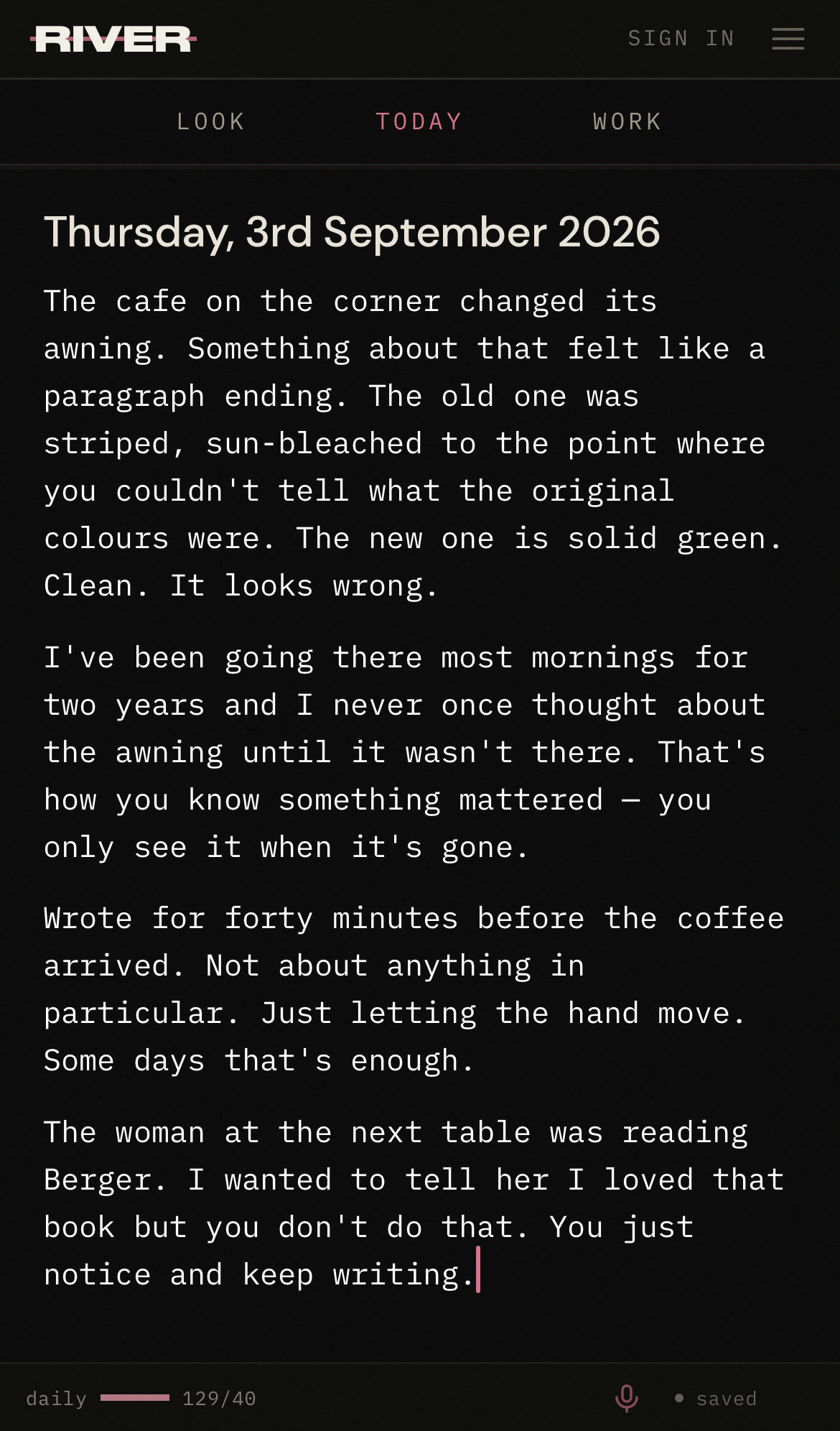
You can try this without an account. Until you sign in, your writing stays in this browser on this device.
2 · Come back
Return to an earlier day
Your writing stays on its date. The Current is the view where you scroll through those daily pages: earlier days are above, later days below. You can return to a day and keep writing there, and double-tap the date to come back to today.
Find a day with the calendar
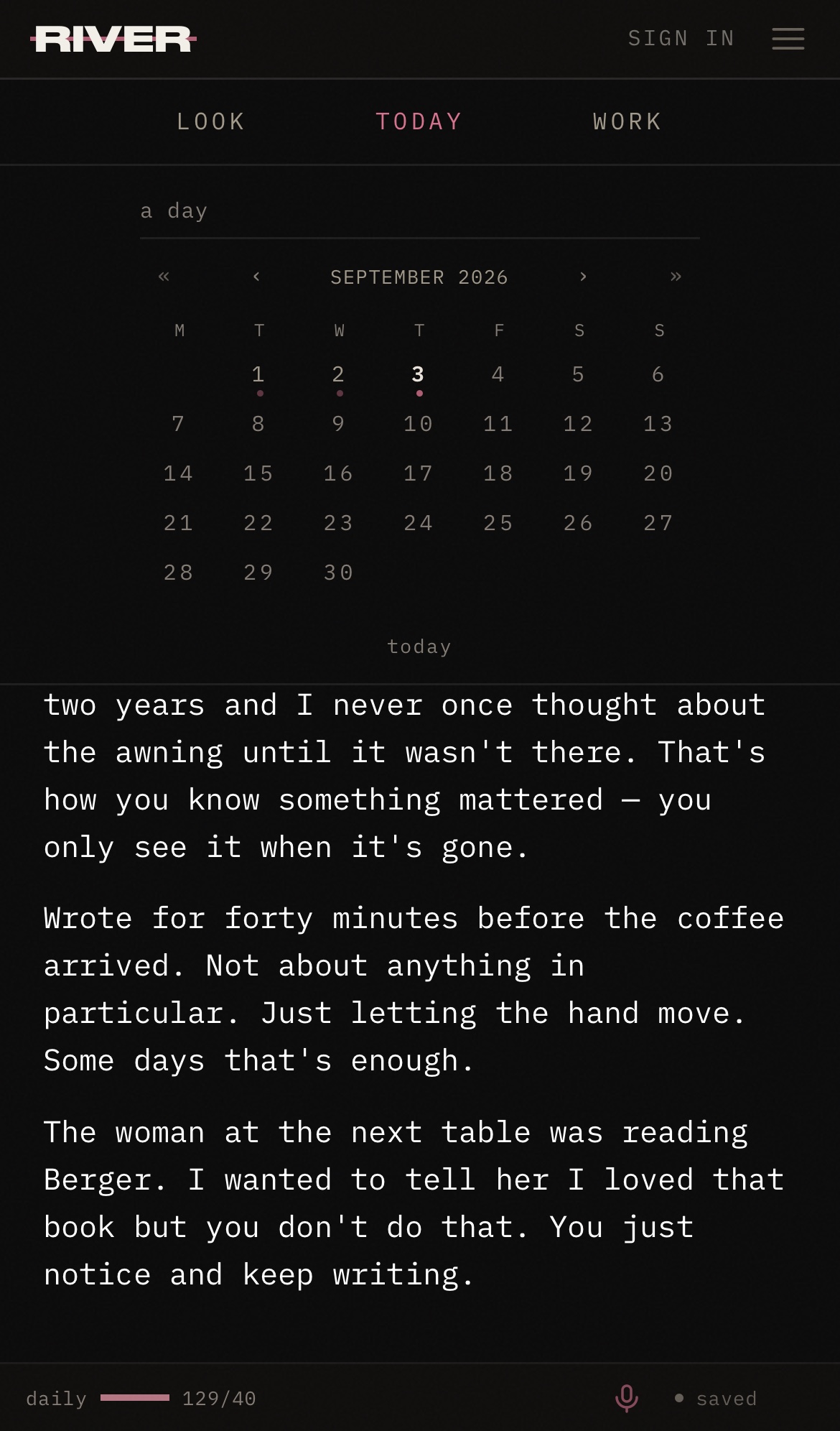
Tap the date above your writing to open the calendar, then choose a day.
3 · Develop an idea
Send a passage to a named note
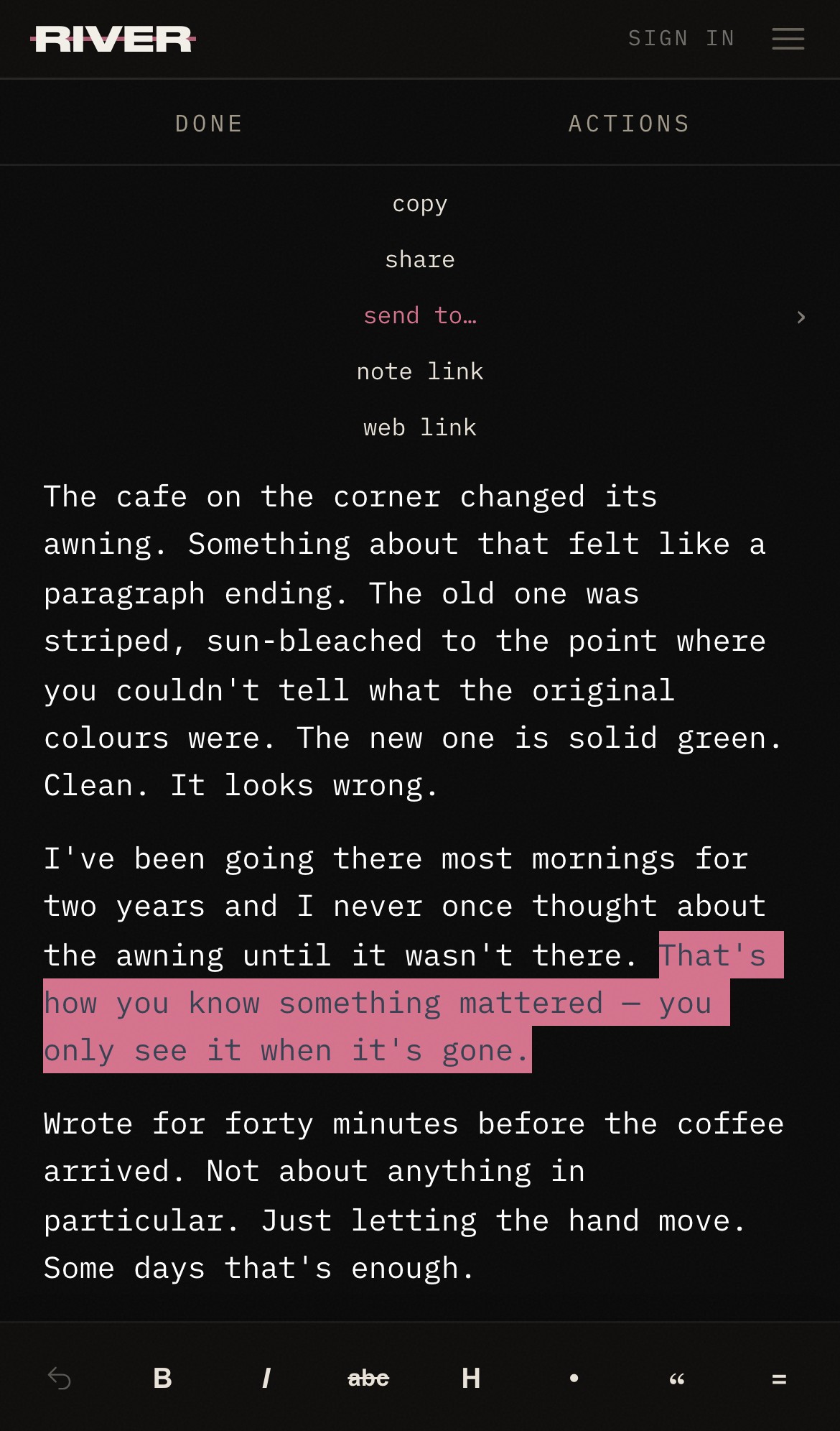
When something you have written or said deserves more attention, select the passage and choose send to… from the menu. Pick an existing note or make a new one: the passage is added there, and the original stays on its daily page. Then carry on with the day, and come back to the piece when you are ready. Below, a sentence from Thursday goes to a new note named the awning.
See each step
In the real app · example writing
When you want to do more
You can come back to these as you need them.
Record a thought
Use the microphone in the bottom bar to record. Allow microphone access when asked. Keep the recording on the page, then choose transcribe if you want the words too. The first use downloads the transcription model to your device and takes longer; later transcriptions use that local model.
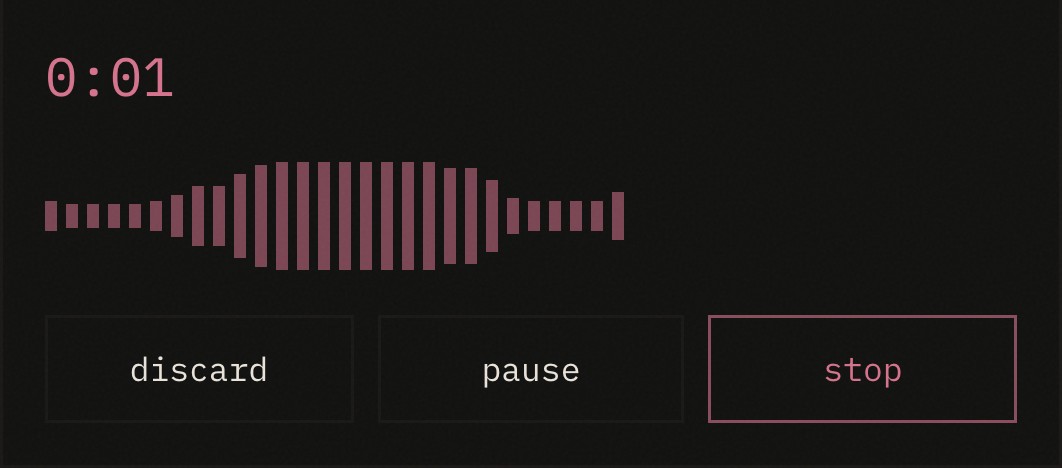
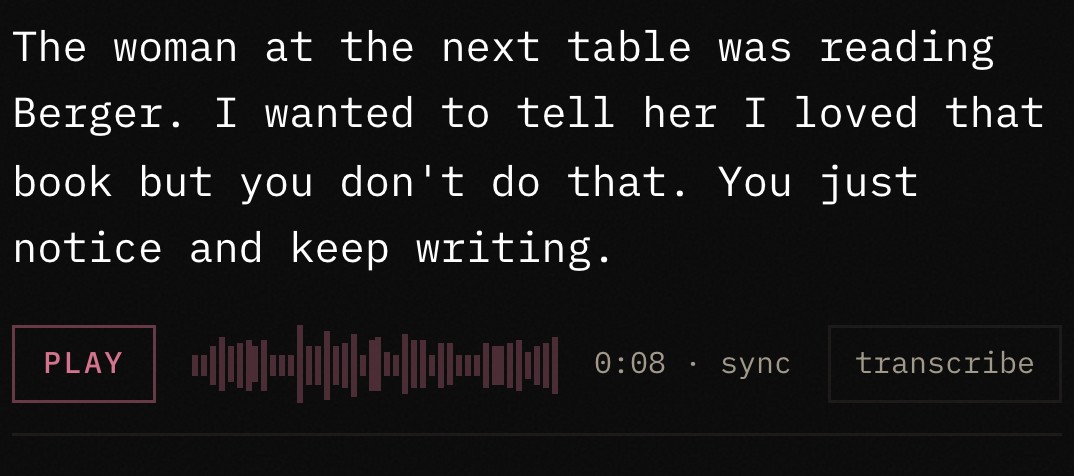
Example captured with a test recording.
Gather notes in a project
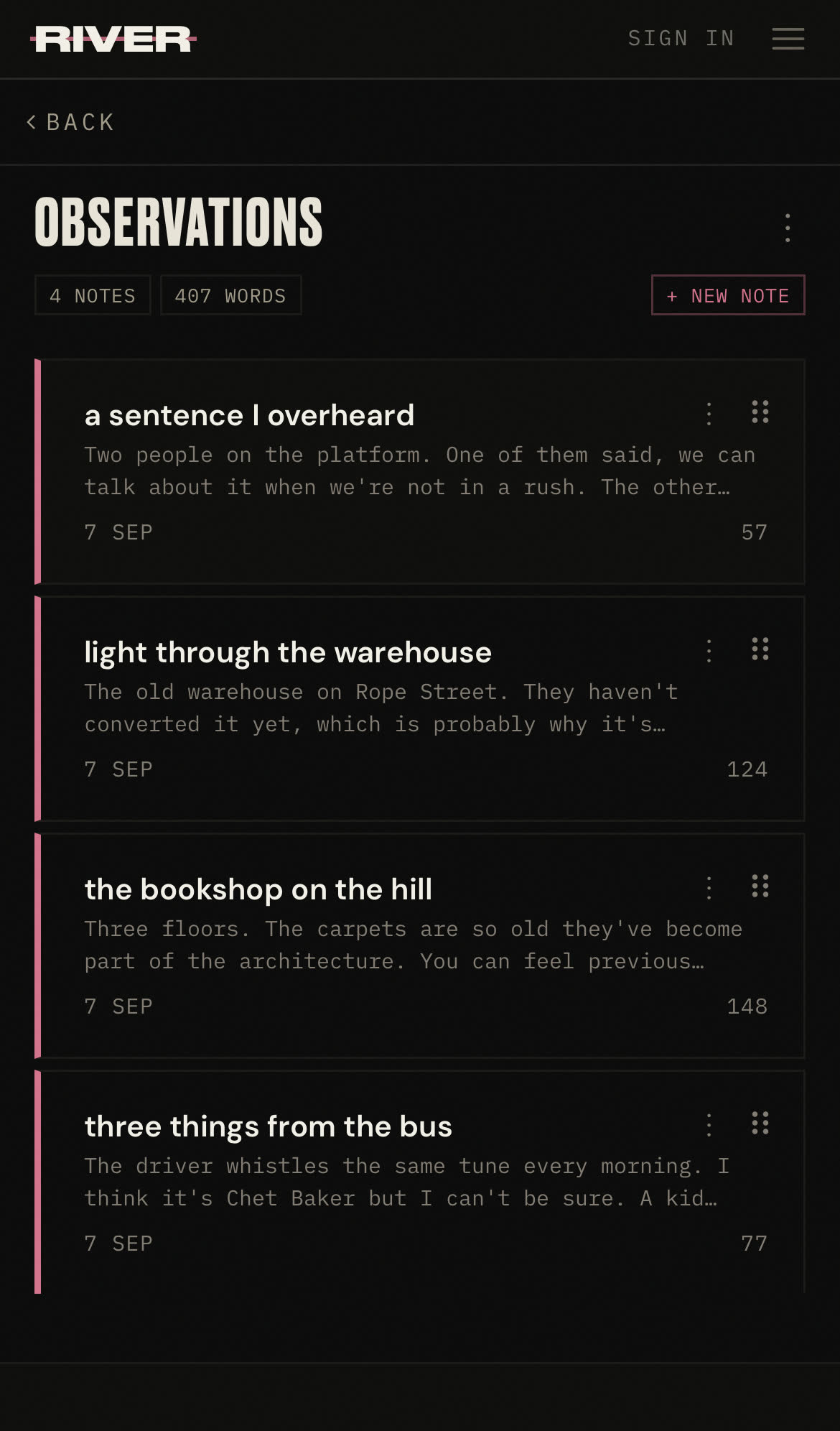
Work is where you find named notes. You can gather related notes into a project as something develops — a set of songs, for example, or a longer piece of writing. Notes outside a project appear under Loose.
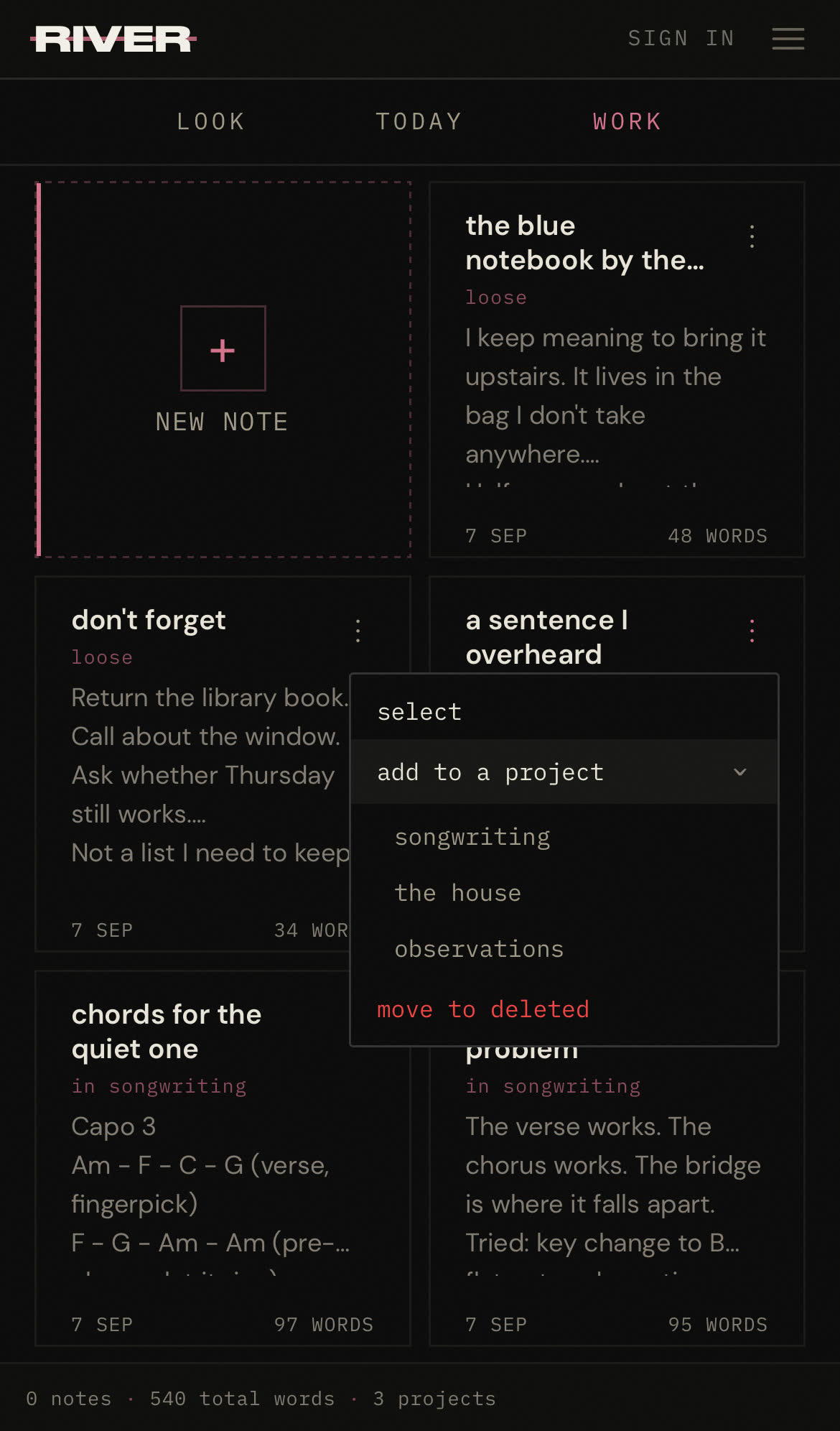
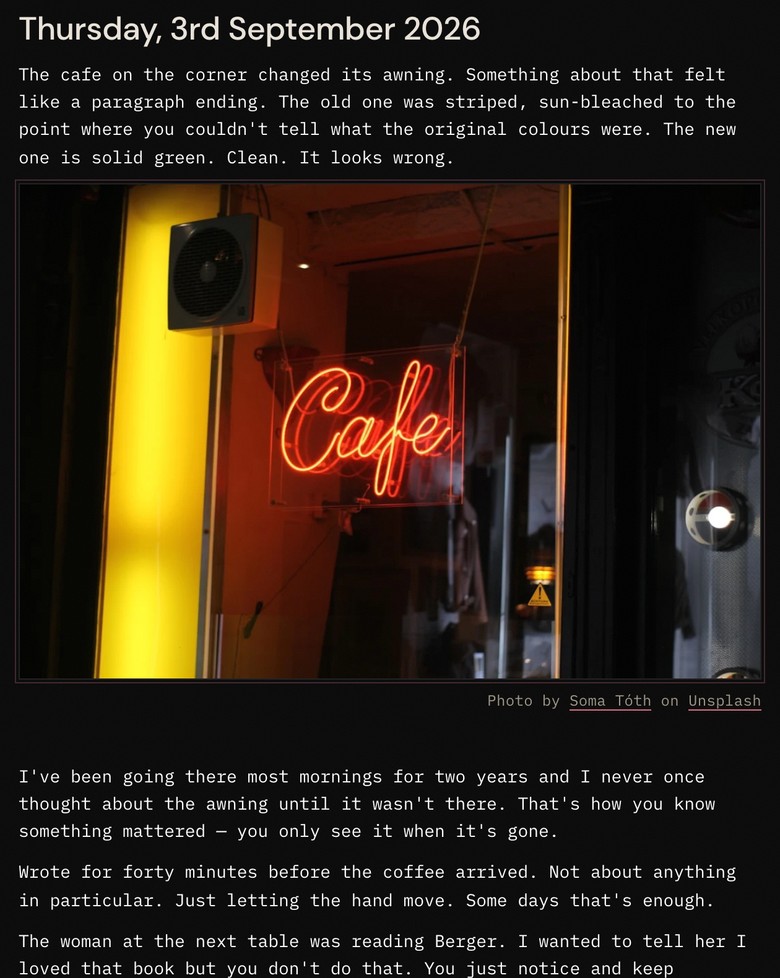
Add a photograph
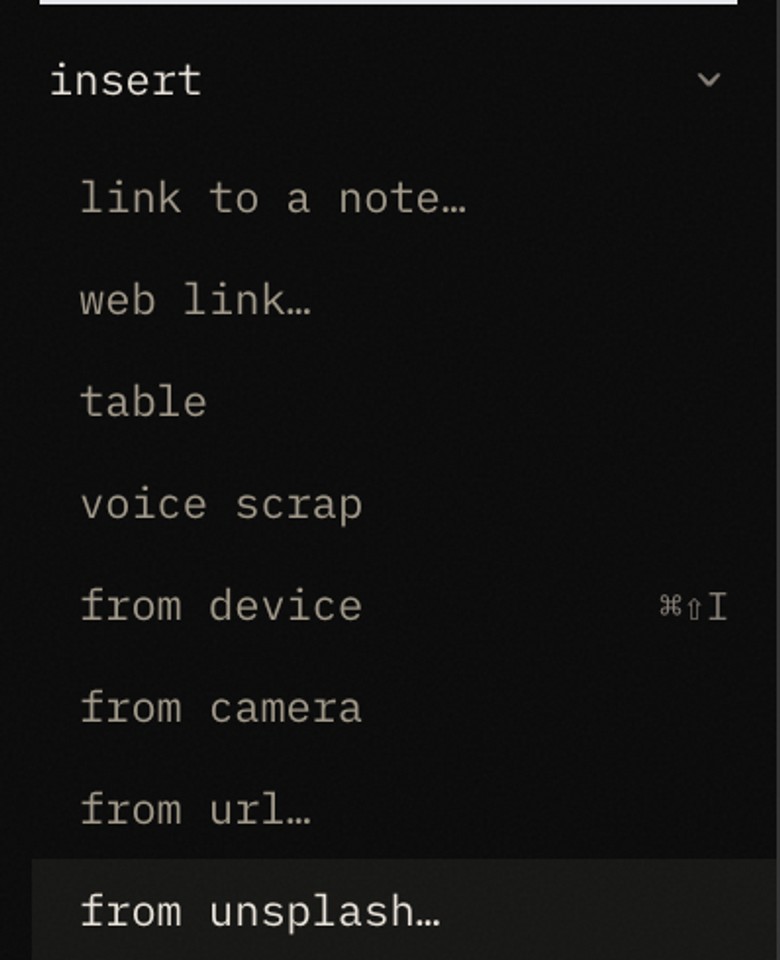
Sign in first: photographs are kept with your account. Then put your own photograph into the writing, or search for one from Unsplash inside River. River includes the credit for an Unsplash photograph.
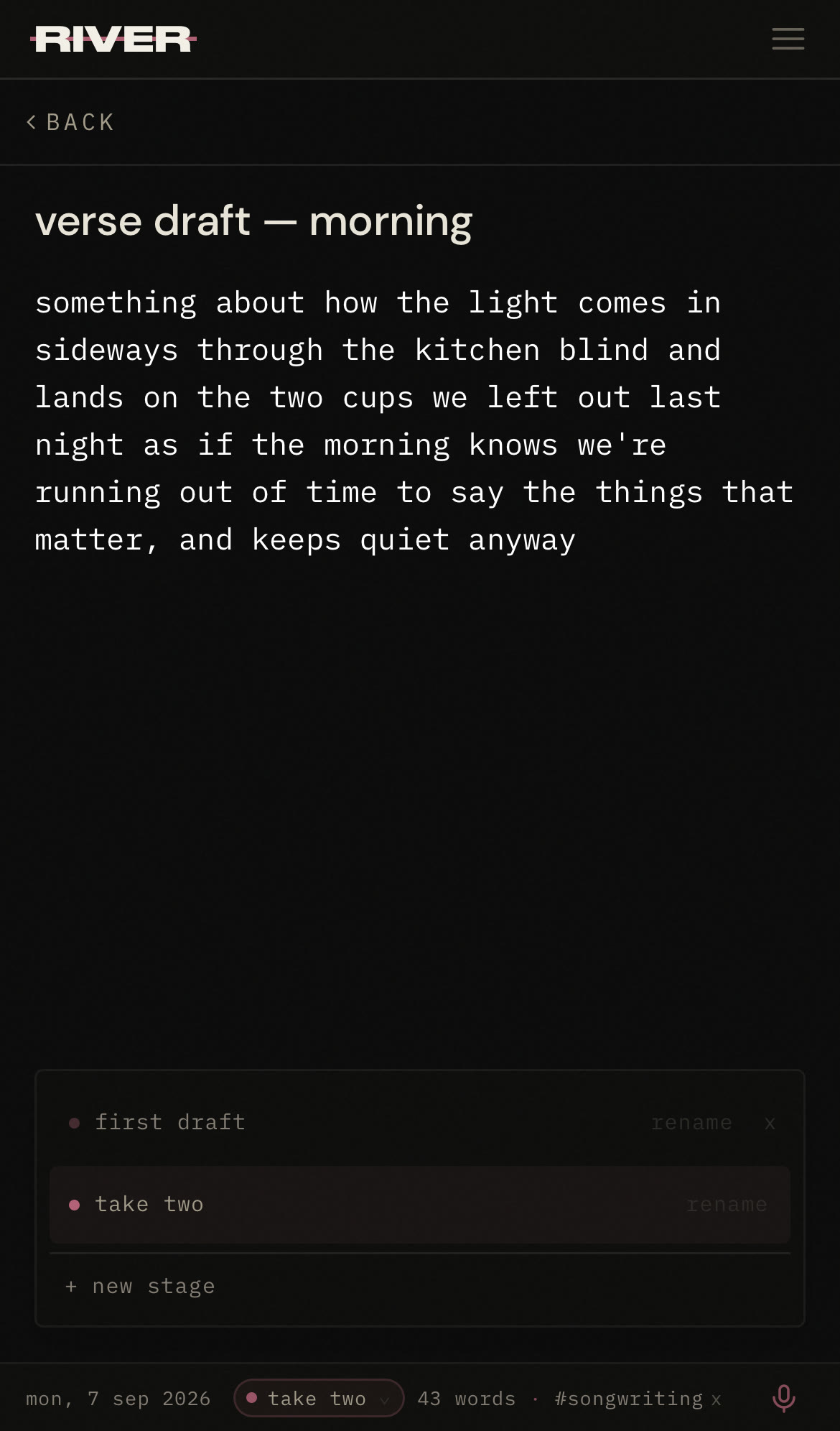
Develop another draft
Stages lets you make another version of a piece while keeping the earlier draft. Open a note from one of your projects and the bottom bar offers it; you can move between the versions as you work.
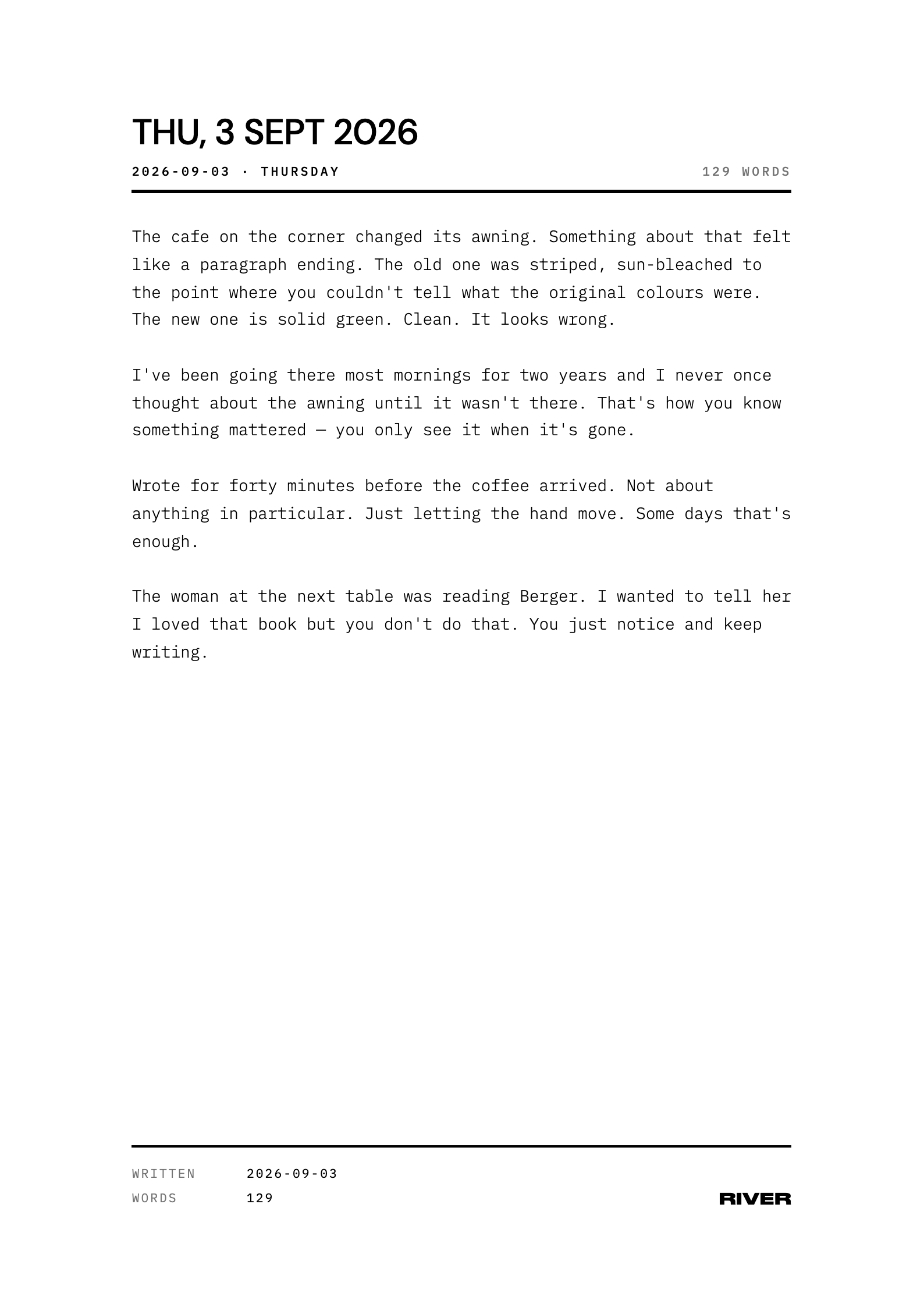
Print a note
Print gives your note a layout for paper, so you can read it away from the screen or give someone a copy.
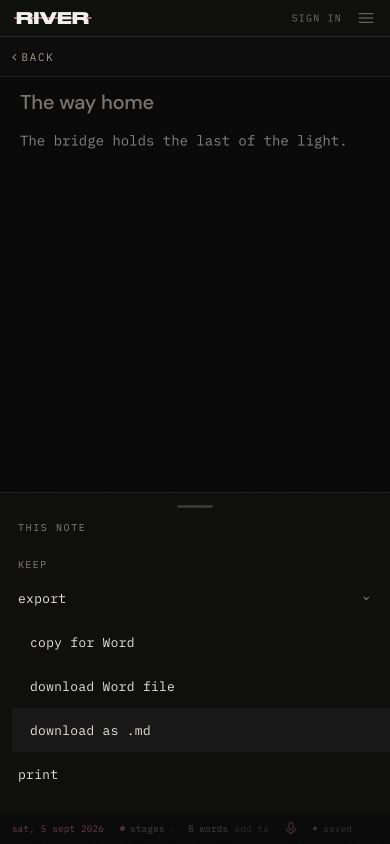
Take your writing with you
Export a note, or your collection, as files you can keep outside River. Markdown and Word are available.
Find something you wrote
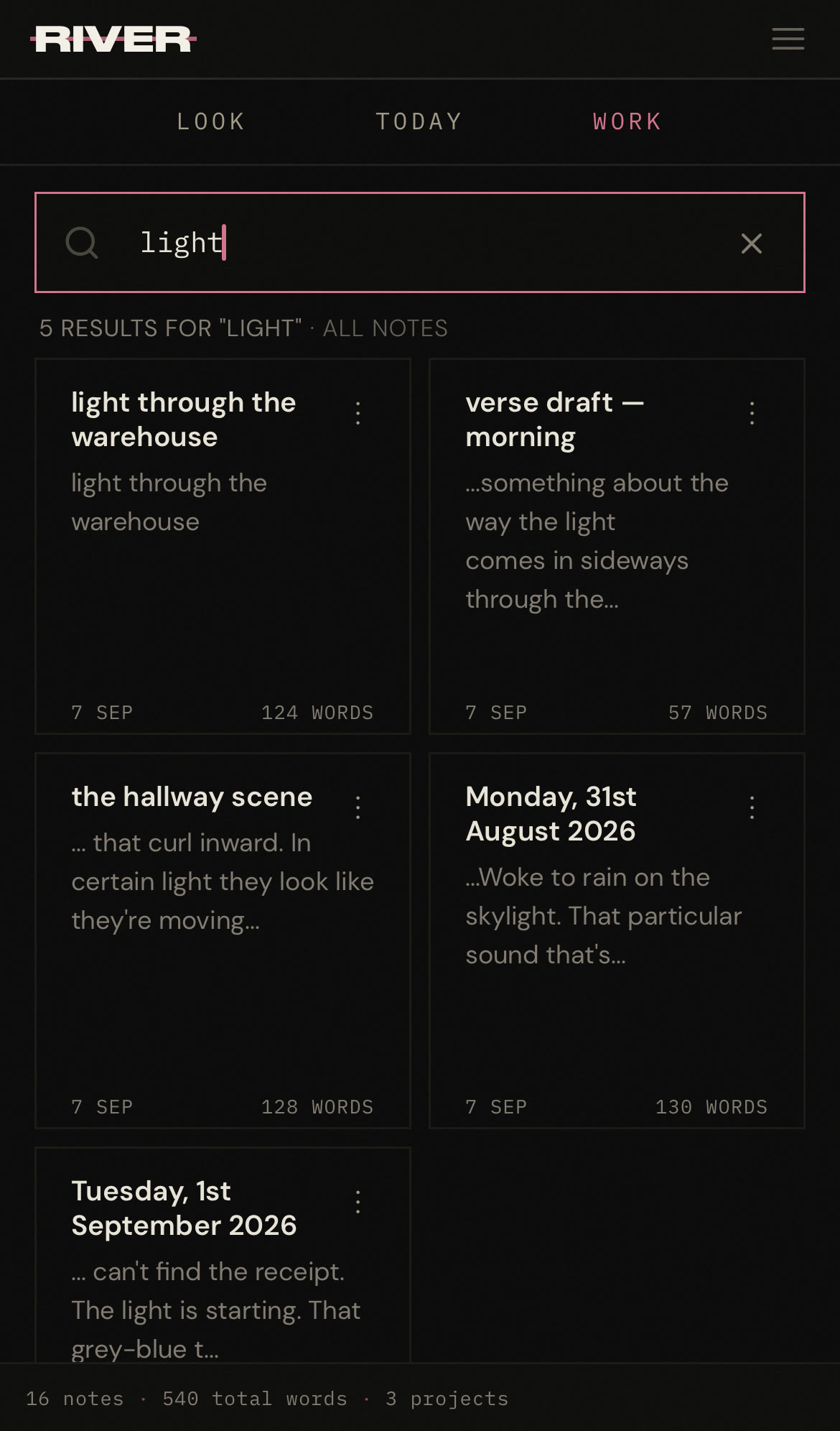
Use search when you remember a word or phrase; it looks through your notes and your days on the device itself. Use the Current when you remember the day. Open Work when you want a named note or project.
Add River to your phone’s Home Screen
See what River looks like in motion
rivernotes.app/getting-started